Locking WordPress down: login lockouts and maintenance mode
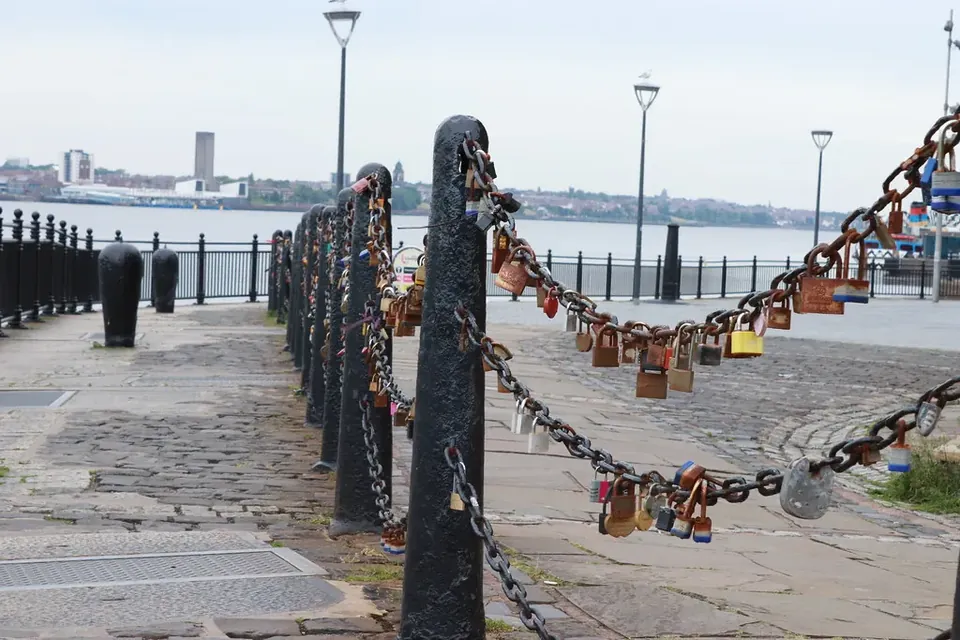
"Locking out" means two different things to WordPress site owners: keeping attackers out of the login form, and keeping visitors out while you work on the site. Both are easy to do well, and easy to do badly.
Part 1: limiting login attempts
Why it matters
Every WordPress site has a login form at /wp-login.php, and automated scripts constantly try common usernames and passwords against it. WordPress core does not limit the number of failed attempts. The attacks rarely succeed against strong passwords, but they waste server resources and succeed often enough against weak ones to be worth stopping.
Plugins that lock out repeat offenders
Login-limiting plugins count failures per IP address and block that address for a period after a threshold, typically lengthening the block for repeat offenders. Limit Login Attempts Reloaded is a dedicated, widely used example; security suites such as Wordfence and Solid Security include the feature, and Jetpack offers brute-force protection that draws on a shared list of malicious IPs across many sites. Check two settings in whatever you choose:
- Reverse proxy handling: behind Cloudflare, a load balancer or some managed hosts, every request appears to come from the proxy's IP. The plugin must read the real client IP from the right header, or it will lock out everyone at once, or no one.
- XML-RPC:
xmlrpc.phpaccepts logins too, and itssystem.multicallmethod can test many passwords in one request. Good plugins cover it; if you do not use the mobile apps, Jetpack or other XML-RPC clients, you can block the file at the server or firewall level.
Better than lockouts: stronger authentication
Lockouts slow attackers; strong authentication defeats them.
- Use long, unique passwords stored in a password manager.
- Add two-factor authentication. The Two Factor plugin, maintained by WordPress contributors, supports authenticator apps, email codes and security keys; most security suites include 2FA as well.
- Don't use "admin" as a username, and give each person their own account with the lowest role they need.
- Application passwords (added in WordPress 5.6) let integrations use the REST API without your main password, and can be revoked individually from your profile.
The WordPress.org hardening guide covers these and other measures.
If you lock yourself out
Wait for the lockout period to expire, or log in from another network. If that is not possible, rename the plugin's folder in wp-content/plugins over FTP or your host's file manager to deactivate it, log in, then rename it back and add your IP to the plugin's allowlist.
Part 2: maintenance mode
What WordPress does on its own
During core, plugin and theme updates, WordPress creates a .maintenance file in the site root and shows visitors a short "Briefly unavailable for scheduled maintenance" message with an HTTP 503 status. The file is deleted when the update finishes. If an update is interrupted, the file can stay behind and keep the site in that state; deleting .maintenance fixes it.
Closing the site deliberately
For longer work, such as a redesign or a migration, you want a proper maintenance page for visitors while logged-in administrators keep working. Many plugins do this. Whatever you use, the page must return the right status code. Google's guidance on planned downtime recommends HTTP 503 "Service Unavailable", ideally with a Retry-After header: it tells crawlers the outage is temporary. A maintenance page served with status 200 can be indexed as if it were your real content, replacing your pages in search results. Google also notes that a 503 lasting many days may eventually be treated as a lasting problem, so keep downtime short.
A minimal version in a must-use plugin:
<?php
// wp-content/mu-plugins/maintenance.php: delete the file to reopen the site
add_action( 'template_redirect', function () {
    if ( current_user_can( 'edit_posts' ) ) {
        return; // editors and admins see the site normally
    }
    status_header( 503 );
    header( 'Retry-After: 3600' );
    nocache_headers();
    echo '<!doctype html><title>Back soon</title><h1>Back soon</h1>'
       . '<p>We are updating the site. Please check again in an hour.</p>';
    exit;
} );
Because it hooks into template_redirect, the login page and the dashboard keep working, so you can still sign in.
Better: avoid downtime entirely
For anything beyond a few minutes, work on a staging copy and push the result live when it is ready. Many hosts provide one-click staging; otherwise a local environment or a password-protected subdomain does the job. Visitors then never see a maintenance page at all.
Which lock-out do you need?
| Situation | Use |
|---|---|
| Logs full of failed logins, or a high server load from bots | A login-limiting plugin, or protection at the firewall or CDN level |
| Worried about stolen passwords | Two-factor authentication |
| A short planned update | A 503 maintenance page, ideally with Retry-After |
| A redesign or migration | A staging site |
| A site that should be private for good | A members or password-protection solution, not maintenance mode |
 Logins & site admin
Custom login URLs
Moving the WordPress login page to a custom address, redirecting users after login, and passwordless login links: how each works, and the security trade-offs.
 Logins & site admin
Lightweight visitor statistics
How to count visitors on a WordPress site without a heavy analytics suite: privacy-friendly plugins, self-hosted Matomo, hosted alternatives and server logs compared.
 Email & newsletters
Why WordPress mail goes missing
Why WordPress emails disappear or land in spam, how wp_mail() works, and how to route site mail through an authenticated SMTP server or sending service.