Two-factor authentication for WordPress: authenticator apps, passkeys and recovery
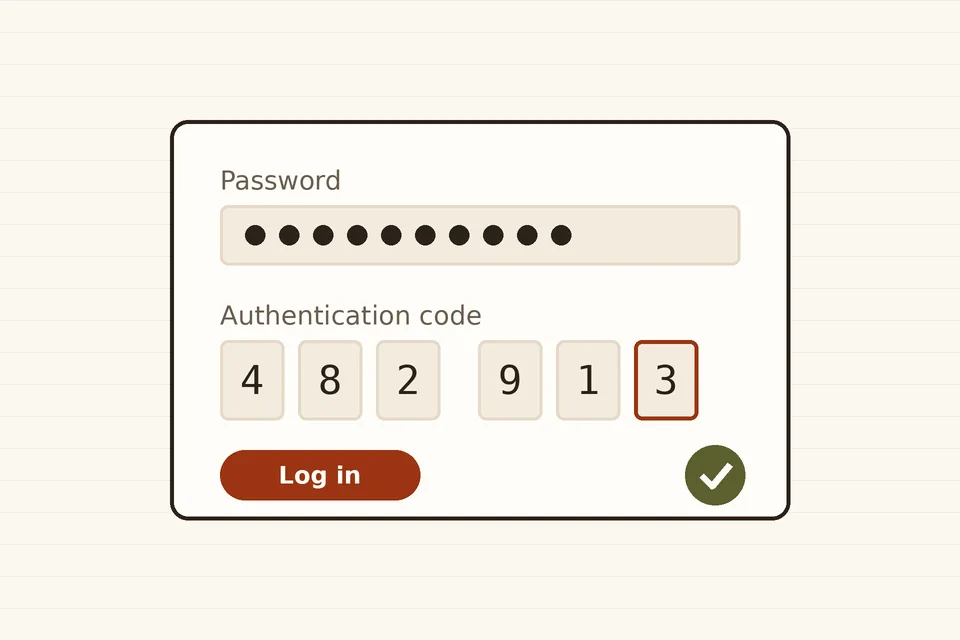
A stolen or guessed password is still the most common way into a WordPress dashboard. A second factor means that the password alone is no longer enough, and it is the single most effective change you can make to the login screen.
WordPress core does not include two-factor authentication (2FA). It has to come from a plugin, a host or a single sign-on service. This guide explains the options, using the Two Factor plugin maintained by WordPress contributors as the main example, because it covers the standard methods and documents its hooks.
What 2FA protects against, and what it does not
A second factor stops attackers who have the password but not the device: credential stuffing with passwords leaked from other sites, phishing that captures only the password, and a password reused by a former colleague. It also makes brute-force guessing pointless, which complements the attempt limits described in login lockouts and maintenance mode.
It does not fix a vulnerable plugin that lets attackers bypass the login entirely, a hijacked session cookie, or an administrator account created by malware. Updates, a short list of plugins and backups still matter.
The methods, from weakest to strongest
Email codes
WordPress sends a one-time code to the user's address after the password is accepted. Nothing to install on the phone, which makes it easy for occasional editors. Its weaknesses: anyone who controls the mailbox controls the login, and the code only arrives if site mail works. If password resets sometimes go missing, fix delivery first, as explained in why WordPress mail goes missing.
Authenticator apps (TOTP)
The user scans a QR code once; an app on the phone then shows a six-digit code that changes every 30 seconds. The algorithm is the time-based one-time password standard, RFC 6238, so any compatible app works, including password managers that generate codes. The secret stays on the device and the server; nothing is sent over the network at login. This is the recommended default for most sites.
TOTP depends on clocks. If codes are always rejected, check that the server's time is synchronised (NTP) and that the phone sets its time automatically.
Security keys and passkeys (WebAuthn)
Hardware keys and the passkeys built into phones and computers use the W3C Web Authentication standard. The browser only completes the login for the real site's domain, so a look-alike phishing page gets nothing usable. That property, phishing resistance, is why the US National Institute of Standards and Technology's SP 800-63B asks verifiers at its AAL2 level to offer at least one phishing-resistant option.
The Two Factor plugin removed its old FIDO U2F provider after browsers dropped the U2F interface. WebAuthn and passkeys are available through the separate Two-Factor Provider: WebAuthn add-on, which also accepts keys registered under the old U2F method. Some security suites and hosts include their own passkey support.
Backup codes
A short list of single-use codes for when the phone is lost. The Two Factor plugin generates ten at a time. They are not a daily method, but every account with 2FA should have them, printed or stored in a password manager.
Setting up the Two Factor plugin
- Install and activate the plugin from Plugins → Add New.
- Each user opens Users → Profile, finds Two-Factor Options, enables one or more methods and chooses a primary one. For an authenticator app, scan the QR code and enter a code to confirm.
- Generate backup codes from the same screen and store them.
- Administrators can disable methods site-wide under Settings → Two-Factor, for example to stop users relying on email codes.
The plugin does not force anyone to enable 2FA. Requiring it for some roles takes a few lines of code using its documented filters, or a plugin that adds an enforcement policy.
A rollout that does not lock anyone out
- Start with administrators. They can do the most damage, and they are the people who can recover other accounts.
- Two methods per person. An app plus backup codes, or a passkey plus an app. A single lost phone should never mean a lost account.
- Keep a recovery path. Make sure someone has database access or WP-CLI. A user's 2FA settings are stored as user meta, so an administrator with shell access can remove them; deactivating the plugin by renaming its folder also restores password-only login in an emergency.
- Write it down. A short internal note on which methods are allowed and who to contact saves a panic on the day a phone is replaced.
Application passwords, XML-RPC and the REST API
Scripts, mobile apps and integrations cannot type a TOTP code. Since WordPress 5.6, released in December 2020, core includes application passwords: long random passwords created per application under Users → Profile, usable only for API requests over HTTPS with Basic authentication, and revocable one by one. They cannot be used to log in to the dashboard.
That matters for 2FA, because an account's normal password should not work on the API either, or the second factor can be bypassed through XML-RPC or REST calls. The Two Factor plugin restricts API authentication to application passwords for users with 2FA enabled, and its two_factor_user_api_login_enable filter controls that behaviour. If your site uses no XML-RPC clients, disabling XML-RPC entirely removes one more path.
Single sign-on instead of per-site 2FA
Organisations that already use Google Workspace, Microsoft Entra ID or another identity provider can let WordPress delegate the login to it through SAML or OpenID Connect plugins. The second factor, and the policy that enforces it, then lives in one place, and leaving staff lose access to every site at once. For a site with a handful of editors, plugin-based 2FA is simpler; for dozens of sites and staff, single sign-on is easier to keep consistent.
Where it fits with other login measures
Two-factor authentication is the strong layer. Attempt limits keep brute-force noise down and protect accounts that have not enrolled yet. Moving the login address, covered in custom login URLs and login links, reduces log noise but is not a security control in itself. Strong unique passwords, kept in a password manager, are still the base.
The official two-step authentication page in the WordPress Advanced Administration handbook gives background on the three kinds of factor and how they combine.
 Logins & site admin
Login lockouts and maintenance mode
Two kinds of lock-out for WordPress: limiting failed login attempts against brute-force attacks, and closing the site to visitors during maintenance without hurting SEO.
 Logins & site admin
Custom login URLs
Moving the WordPress login page to a custom address, redirecting users after login, and passwordless login links: how each works, and the security trade-offs.
 Email & newsletters
Why WordPress mail goes missing
Why WordPress emails disappear or land in spam, how wp_mail() works, and how to route site mail through an authenticated SMTP server or sending service.