How to back up a WordPress site: files, database and a restore you have tested
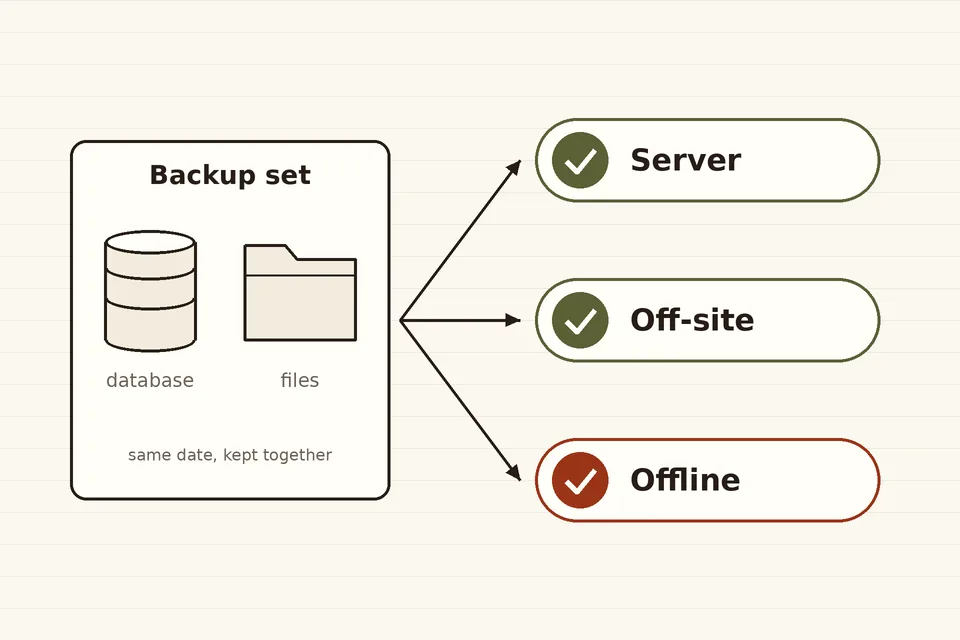
A WordPress backup has two halves: the files in the WordPress directory and the database that holds your posts, pages, users and settings. Copying one without the other leaves you with a site you cannot restore. And a backup you have never restored is only a hope.
This guide covers what to include, three ways to make the copy (your host, a plugin, or WP-CLI on the command line), where to keep it, and how to rehearse a restore. The WordPress Advanced Administration handbook page on backups is the official reference and is worth keeping open alongside.
What a complete backup contains
The database. Every post, page, comment, user account, menu, widget and most plugin settings live in MySQL or MariaDB, outside the WordPress folder. Downloading the folder by FTP does not include them. A database backup is an export, usually a .sql file, sometimes compressed.
The files. The parts that cannot be downloaded again are:
wp-content/uploads/: every image and document added through the Media Library. This is usually the largest folder and the one most often missing from home-made backups.wp-content/themes/andwp-content/plugins/: especially any custom or premium theme or plugin that is not on WordPress.org.wp-config.php: database credentials, security keys and constants. Treat it as a secret..htaccess(on Apache) and any other server configuration you changed.
WordPress core itself can always be downloaded again at the same version, so it matters less, but including it costs little and makes a restore simpler.
The handbook's advice is to treat the two halves as one backup set made at about the same time: export the database first, then copy the files, and keep the export inside the same archive. When restoring, put the files back first, then import the database.
How often, and how many copies
The handbook suggests weekly backups for smaller sites with few posts and daily backups for busy ones, always plus one before an update. It recommends keeping at least three to five recent backups in different places: for example one on the hosting server, one in cloud storage and one on your own computer. The reasoning is simple: a backup kept only on the same server disappears with it, whether the cause is a failed disk, a hacked account or a closed hosting contract.
Think too about how far back you can go. Malware is often found weeks after it arrived, and a backup schedule that keeps only the last three nights may contain three infected copies. A mix of daily copies for the past week and weekly or monthly copies for longer covers both accidents and late discoveries.
Option 1: your host's backups
Many hosts take automatic snapshots and offer a restore button in the control panel. Check four things before relying on them: how long copies are kept, whether you can download them, whether they include the database, and whether they are stored outside the server that runs your site. Host backups are a good first layer, but you still want at least one copy that is under your own control and would survive the end of your hosting account.
Option 2: a backup plugin
Backup plugins run from inside WordPress on a schedule, export the database, zip the files and send the archive to remote storage such as an S3-compatible bucket, an SFTP server or a cloud drive. When choosing one, look for:
- remote storage that is not the web server itself;
- a restore process documented step by step, including a way to restore when the dashboard is unreachable;
- encryption of archives stored with a third party;
- failure notifications. They arrive by email, so make sure site mail is actually delivered, as described in why WordPress mail goes missing.
Plugins run inside PHP, so very large sites can hit time or memory limits. If archives regularly stop half way, a server-level method is more reliable.
Option 3: WP-CLI and the command line
With shell access, wp db export runs mysqldump with the credentials from wp-config.php, as its WP-CLI reference explains. A minimal backup of a site in /var/www/example:
mkdir -p ~/backups
cd /var/www/example
wp db export ~/backups/db-$(date +%F).sql --single-transaction
tar -czf ~/backups/files-$(date +%F).tar.gz .
The --single-transaction flag is passed through to mysqldump; for InnoDB tables, the default engine in current MySQL and MariaDB, it produces a consistent snapshot without locking the site while the export runs (see "mysqldump: A Database Backup Program", MySQL Reference Manual). The two files share a date and sit together in ~/backups, outside the public web root. Never leave a .sql export inside the site folder: anyone who guesses its name can download your user table.
A scheduled job can then copy the archive off the server with rsync or a storage tool. Delete old archives on a rota so the disk does not fill up.
Test the restore
The handbook recommends checking automatic backups with a manual one now and then, to confirm the process still works. The surest check is a full restore on a staging copy:
- Create an empty database and a new folder or subdomain, ideally protected by a password.
- Unpack the files and edit
wp-config.phpwith the new database name, user and password. - Import the export:
wp db import db-2026-10-26.sql, or use phpMyAdmin's Import tab. - If the address changed, run
wp search-replace 'https://example.com' 'https://staging.example.com' --dry-run, check the counts, then run it again without--dry-run. WP-CLI handles PHP serialized data, which a plain text find-and-replace in the SQL file would corrupt. - Log in, open a few posts, check that images load and forms send, then delete the staging copy or block search engines from it.
Note how long it took. That figure is your real recovery time, and it is the one to tell a client or manager.
When restoring a live site, put it into maintenance mode first so visitors do not submit orders or comments that the restore will erase; login lockouts and maintenance mode explains the options.
Backups and security
A backup contains everything an attacker wants: password hashes, email addresses, API keys in wp-config.php. Store copies encrypted, limit who can read the storage bucket, and use separate credentials for it so that a compromised WordPress account cannot also delete the backups. Prevention still comes first; two-factor authentication on administrator accounts removes the most common way in.
If the site holds personal data, its backups are personal data too. Data protection rules on retention and storage location apply to them as they do to the live database, so keep only as many old copies as you need.
A short checklist
- Database and files backed up together, at least weekly, and before every update.
- At least one copy off the server and outside the hosting account.
- Copies covering several weeks, not only the last few nights.
- Archives encrypted and stored with separate credentials.
- A test restore done, timed and written down.
 Logins & site admin
Login lockouts and maintenance mode
Two kinds of lock-out for WordPress: limiting failed login attempts against brute-force attacks, and closing the site to visitors during maintenance without hurting SEO.
 Logins & site admin
Two-factor authentication
Authenticator apps, passkeys and backup codes: which second factor to choose and how to roll it out safely.
 Email & newsletters
Why WordPress mail goes missing
Why WordPress emails disappear or land in spam, how wp_mail() works, and how to route site mail through an authenticated SMTP server or sending service.