"There has been a critical error on this website": WordPress recovery mode, step by step

"There has been a critical error on this website." The sentence replaces the whole page, front end and dashboard alike, and gives no hint of what broke. Behind it is a PHP fatal error, almost always in a plugin or a theme, and WordPress has a built-in way to get you back into the dashboard so you can deal with it.
This guide explains what the message means, how recovery mode works, how to read the error in the debug log, and the manual fixes for the cases where recovery mode cannot help.
What the message actually means
When PHP hits a fatal error, it stops running the page. Before WordPress 5.2, released in May 2019, that usually left a blank page, the so-called white screen of death, and the only way back was to rename folders over FTP. Since 5.2, WordPress catches the fatal error at shutdown, shows a short message instead, and, when it can tell which plugin or theme caused it, offers a way around it. The feature was introduced in the core developer note on fatal error recovery mode, which is still the clearest description of how it works.
The exact wording tells you where you stand. In current versions of WordPress:
- "There has been a critical error on this website. Please check your site admin email inbox for instructions." WordPress identified the culprit and has emailed a recovery link.
- "There has been a critical error on this website." on its own: no email was sent from this request. The error may not come from a plugin or theme, or it happened on a page that does not trigger the email (more on that below).
- "There has been a critical error on this website, putting it in recovery mode." You are already in recovery mode, and the Plugins and Themes screens will show what was paused.
The recovery mode email
The email goes to the site's administration email address, set under Settings → General. Its subject reads "[Your site name] Your Site is Experiencing a Technical Issue". The body names the plugin or theme WordPress caught, gives the error details (file, line and message), lists the WordPress, theme and PHP versions, and contains a secret link to enter recovery mode.
Three details from the core code matter in practice:
- One email a day. By default WordPress sends at most one recovery email per day, so a second visit to the broken page will not produce a new one. Developers can change this with the
recovery_mode_email_rate_limitfilter. - The link expires. By default the link is valid for the same period, one day. An old email in your inbox may hold a link that no longer works.
- Only some pages trigger it. The email is sent when the error happens on the login page, in the dashboard or during a few protected admin requests. If only the public front end crashes, open
/wp-login.phpor/wp-admin/yourself to trigger it.
The email is sent by WordPress itself, so it only arrives if the site's mail works. A site that relies on PHP's mail() function on a host that blocks it will never deliver it; why WordPress mail goes missing explains how to route mail through an authenticated server before you need it. You can also send the email somewhere other than the admin address by defining RECOVERY_MODE_EMAIL in wp-config.php, for example the address of the person who maintains the site.
Using recovery mode
- Click the link in the email. WordPress sets a cookie in your browser and asks you to log in.
- Once logged in, a notice at the top of the dashboard says recovery mode is active. The plugin or theme that caused the error is paused, and its entry on the Plugins or Themes screen shows the error message.
- Decide what to do: deactivate the plugin (the quickest fix), switch to another theme, roll back to an earlier version, or report the error to the developer with the exact message.
- Click Exit Recovery Mode in the admin bar when you are done.
The pause applies only to the browser holding the recovery cookie. Visitors and other administrators still see the critical error until you deactivate or fix the extension, so do not leave the site in that state and assume it is repaired. Exiting recovery mode with a broken plugin still active simply brings the error back.
Reading the error in the debug log
If the email never arrived, or you want the full error, turn on WordPress's debug log. The debugging page of the Advanced Administration handbook gives the lines to add to wp-config.php, above the "That's all, stop editing!" comment:
define( 'WP_DEBUG', true );
define( 'WP_DEBUG_LOG', true );
define( 'WP_DEBUG_DISPLAY', false );
@ini_set( 'display_errors', 0 );
Reload the broken page, then open wp-content/debug.log. Look for a line starting PHP Fatal error: the file path in it points to the folder at fault, such as wp-content/plugins/some-plugin/ or wp-content/themes/some-theme/. Common messages include Allowed memory size ... exhausted (a memory limit too low or a runaway process), Call to undefined function (often an extension written for an older or newer PHP or WordPress version) and Cannot redeclare (two plugins defining the same function).
Keep WP_DEBUG_DISPLAY off on a live site so visitors never see paths and error details. The handbook advises against leaving debug tools on in production, and the log file sits in a public folder by default, so switch WP_DEBUG back to false and delete debug.log once you are done. Alternatively, give WP_DEBUG_LOG a file path outside the web root instead of true.
When recovery mode cannot help
If there is no email and no access to the dashboard, disable the suspect by hand:
- Over FTP or the host's file manager, rename the plugin's folder in
wp-content/plugins/, for example by adding-off. WordPress can no longer find it and deactivates it. If you do not know which plugin is at fault, rename the wholepluginsfolder, check the site loads, then restore the name and reactivate plugins one by one. - For the theme, rename the active theme's folder. WordPress falls back to a default theme if one is installed.
- With WP-CLI, run commands without loading the broken code:
wp plugin list --status=active --skip-plugins --skip-themeslists what is active, andwp plugin deactivate some-plugin --skip-plugins --skip-themesswitches the culprit off.
If the log points to WordPress core files or the error appeared just after the host changed the PHP version, the cause may be the server rather than an extension. Ask the host which PHP version the site now runs and check that your plugins and theme support it.
After the fix
Once the site is back, open Tools → Site Health. The Site Health screen flags critical issues such as an outdated PHP version, plugins waiting for updates, failed background updates and debug settings that display or log errors publicly, which is a useful check that you switched debugging off again.
Then reduce the chance of a repeat. Most critical errors appear right after an update, so update on a staging copy first where you can, and take a fresh backup before every update; how to back up a WordPress site covers making one and testing the restore. Keep the administration email address pointed at an inbox someone actually reads, and test once that WordPress mail reaches it.
A short checklist
- Check the admin inbox for "Your Site is Experiencing a Technical Issue"; if nothing arrived, visit
/wp-admin/to trigger the email. - Use the link within a day, deactivate or replace the paused extension, then exit recovery mode.
- No email? Turn on
WP_DEBUG_LOG, read the fatal error line, and rename the folder it names. - Turn debugging off and delete
debug.logafterwards. - Make sure site mail is delivered and backups run before every update.
 Logins & site admin
Backing up WordPress
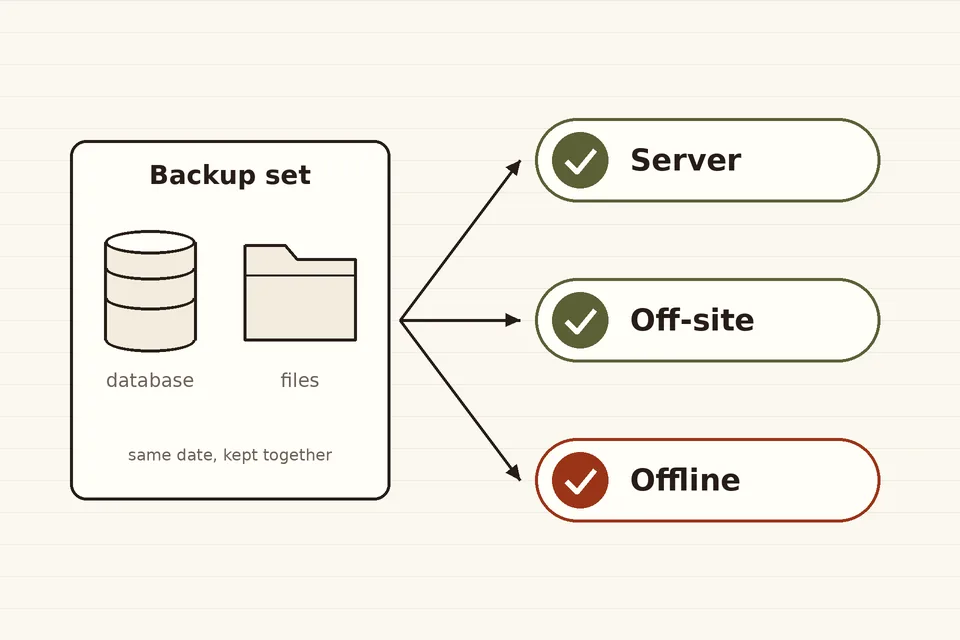
Files and database as one set, copies in separate places, and a test restore before the day you need it.
 Logins & site admin
Login lockouts and maintenance mode
Two kinds of lock-out for WordPress: limiting failed login attempts against brute-force attacks, and closing the site to visitors during maintenance without hurting SEO.
 Email & newsletters
Why WordPress mail goes missing
Why WordPress emails disappear or land in spam, how wp_mail() works, and how to route site mail through an authenticated SMTP server or sending service.