Keeping WordPress updated: automatic updates, rollbacks and a routine that won't break the site
Most hacked WordPress sites were not beaten by clever attackers. They were running a plugin with a known hole that had been fixed weeks earlier, by an update nobody clicked. The opposite fear is just as common: an update goes in on a Friday afternoon and the site shows a critical error. Both problems have the same answer, which is to decide in advance what updates on its own, what waits for a person, and what happens when something goes wrong.
This guide covers what WordPress updates by itself out of the box, how to change that for core, plugins and themes, what the rollback features added in recent versions actually protect, and a simple routine for a small site.
Four kinds of update, four defaults
WordPress distinguishes core, plugin, theme and translation updates, and treats each differently. The Upgrading WordPress page of the Advanced Administration handbook sets out the defaults:
- Minor core releases (maintenance and security versions, such as a change in the third number) have installed themselves in the background since WordPress 3.7. This is on by default and the handbook strongly discourages turning it off.
- Major core releases install automatically on sites created with WordPress 5.6 or later, unless WordPress detects a version-control checkout. Older sites keep the earlier behaviour, minor releases only, until an administrator changes it.
- Translations update automatically by default.
- Plugins and themes do not, except in special cases: the WordPress.org security team can push an automatic update for a critical vulnerability. Otherwise each plugin and theme waits for you, or for its own auto-update switch.
So a site that has been running for years, with nobody logging in, is often fully patched at the core level and badly out of date everywhere else. Plugins are where the risk sits.
Switching auto-updates on, one item at a time
Since WordPress 5.5, the Plugins screen has an Automatic updates column with an "Enable auto-updates" link for each plugin, and the theme details screen has the same switch for each theme. For core, Dashboard > Updates offers a choice between maintenance and security releases only and all new versions.
A sensible split for a small business or association site:
- Auto-update small, widely used plugins from WordPress.org that change rarely, plus the active theme if it comes from the directory and has no customisations in its own files (custom changes belong in a child theme).
- Update by hand anything that touches money, members or the site's structure: shop, booking, membership and page-builder plugins, and anything that runs database changes on update. Read the changelog first.
- Delete plugins and themes you have deactivated. Inactive code still sits on the server and can still be reached; if you are not using it, it should not be there.
Premium plugins bought outside WordPress.org usually only update while their licence key is active. An expired licence is a quiet way for a site to fall behind, so put renewal dates in the same calendar as the domain name.
Setting it in code instead
Developers who manage several sites, or who want the policy to survive a client clicking around, can set it in code. In wp-config.php, the WP_AUTO_UPDATE_CORE constant takes true (all core updates), 'minor' (security and maintenance releases only) or false (none), and overrides the setting on the Updates screen:
define( 'WP_AUTO_UPDATE_CORE', 'minor' );Plugins and themes are controlled with filters, which the handbook recommends placing in a must-use plugin rather than in wp-config.php. This one auto-updates a named list of plugins and leaves the rest to the normal setting:
add_filter( 'auto_update_plugin', function ( $update, $item ) {
    $always = array( 'akismet', 'buddypress' );
    return in_array( $item->slug, $always, true ) ? true : $update;
}, 10, 2 );
Two settings to avoid: AUTOMATIC_UPDATER_DISABLED, which switches off every automatic update including core security releases, and returning false from auto_update_plugin for everything, which also blocks the emergency security pushes. Both turn a missed week into a missed year.
From the command line, WP-CLI does the same jobs: wp core update, wp plugin update --all, and wp plugin auto-updates enable <plugin> to switch the dashboard toggle on.
What the rollbacks protect, and what they don't
WordPress has grown three safety nets for updates, and it helps to know their limits.
- Core updates have rolled back on failure since automatic updates arrived in 3.7: if the new files cannot be installed, the site stays on the old version.
- Manual plugin and theme updates gained a rollback in WordPress 6.3. The old version is moved to a temporary folder (
wp-content/upgrade-temp-backup) during the update and restored if the installation fails. The core team's note on the feature is explicit that it does not let you go back to the previous version after a successful update; the backup is deleted as soon as the update finishes. Since 6.3 an active plugin is also not reactivated if the update causes a fatal error. - Plugin auto-updates gained a rollback in WordPress 6.6. According to the merge proposal for the feature, after auto-updating an active plugin WordPress makes a request to the home page; if that request returns an error, it assumes a PHP fatal error, restores the previous version and emails the site's administration address.
None of this catches an update that installs cleanly and breaks something without a fatal error: a checkout button that no longer submits, a layout that falls apart, a form that stops sending. Nor does it undo database changes. That is what a backup is for, and why every routine starts with one; our guide to backing up WordPress and testing the restore covers it. If an update does take the site down, recovery mode lets you log in and pause the faulty plugin.
Make sure you hear about it
WordPress emails the administration address after automatic core, plugin and theme updates, including failures and rollbacks. Two things commonly break that loop. The address in Settings > General belongs to someone who left, or the site's mail never arrives at all. Check both: send a test message, and if WordPress mail goes missing, our guide to sending WordPress email through SMTP explains the fix. The Tools > Site Health screen also reports whether background updates can run and whether plugins are waiting for updates.
A monthly routine for a small site
- Check that last night's backup exists and that the restore was tested at least once this year.
- Open Dashboard > Updates and read the list. For anything updated by hand, skim the changelog for words like "breaking", "requires PHP" or "database".
- Update on a staging copy first if your host offers one; otherwise update outside busy hours, one plugin at a time for the important ones.
- Click through the pages that earn money or collect data: the contact form, the shop basket, the booking calendar, the login.
- Delete what you no longer use, and check Site Health for warnings, including the PHP version.
- Review who can update at all. Only Administrators can install and update plugins; our guide to WordPress user roles explains how to keep that list short.
Twenty minutes a month, with auto-updates covering the gaps in between, is enough to keep most small sites current. The sites that get into trouble are rarely the ones that update too often; they are the ones where nobody has looked since launch.
 Logins & site admin
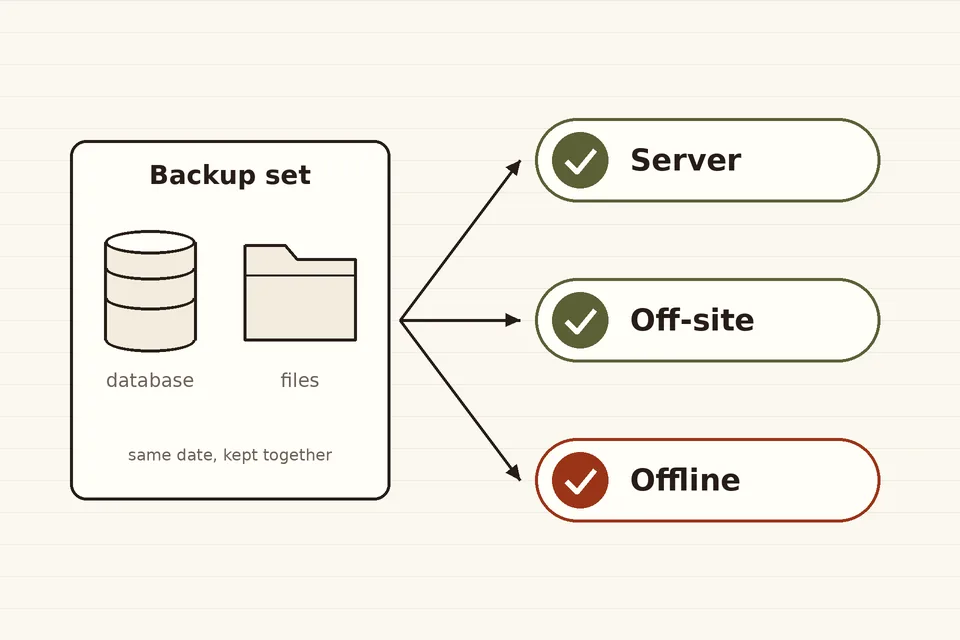
Backing up WordPress
Files and database as one set, copies in separate places, and a test restore before the day you need it.
 Logins & site admin
Fixing a critical error
What the message means, how the recovery link works, and how to get back in when the email never arrives.
 Logins & site admin
Choosing user roles
What each built-in role can do, which capabilities are risky, and how to give people the least access that lets them work.