WordPress Site Health explained: which warnings matter and how to fix them
Every WordPress site has a built-in check-up that most owners open once, see an orange circle, and close again. The Site Health screen is worth more than that. It is the quickest way to find out whether updates can still install, whether scheduled tasks are running and whether the server is on a supported version of PHP. It also has a habit of recommending things a small site does not need, which is why people stop reading it.
This guide explains what the screen checks, how to sort its warnings into "fix now", "fix soon" and "safe to leave", and how to use the Info tab when you ask for help.
Where it is and who can see it
Site Health lives under Tools > Site Health. WordPress 5.1 started warning about outdated PHP versions, and the WordPress 5.2 release announcement added the two pages that make up the screen today. Only users who can manage the whole site see it: Administrators on a single site, Super Admins on a multisite network. If you are an Editor and cannot find the menu, that is why; our guide to WordPress user roles explains the split.
The screen has two tabs. Status runs a series of tests and groups the results as critical issues, recommended improvements and passed tests. Info is a long, read-only description of the installation: versions, paths, server settings, database, constants and file permissions. Nothing on either tab changes your site. The checks look; you decide.
Reading the Status tab
The Site Health screen documentation describes critical issues as potential security holes or serious performance problems, and recommended improvements as items that are not critical but should be changed. In practice the labels are a starting point, not a verdict. A recommended fix on a busy shop can matter more than a "critical" notice on a test site nobody visits. Expand each item: WordPress explains what it found and usually links to the setting or documentation involved.
Each result is also tagged by area, such as Security or Performance. When you have a list of ten items, deal with Security first.
The warnings worth fixing first
- Outdated PHP version. PHP is the language WordPress runs on, and versions that no longer receive security fixes are flagged as critical. The switch is made in your hosting control panel, not in WordPress. Take a backup, update plugins and theme first, then change the PHP version and click through the important pages. If something breaks, the host's panel lets you switch back while you find the culprit.
- Background updates are not working. This means WordPress cannot install security releases on its own. Common causes are a constant such as
AUTOMATIC_UPDATER_DISABLEDinwp-config.php, a version-control folder in the site root, or file permissions that stop WordPress writing its own files. Our guide to automatic updates and rollbacks covers the settings involved. - Plugins or themes waiting to be updated, and inactive ones lying around. Update what you use and delete what you do not. Deactivated code still sits on the server.
- Your site is set to display errors to visitors, or to log errors to a potentially public file. These come from
WP_DEBUG_DISPLAYandWP_DEBUG_LOG, often left on after a debugging session. Error messages can reveal file paths and plugin details, and a default log sits inwp-content/debug.log, where anyone who guesses the address may read it. Turn display off on a live site, and if you need a log, point it to a file outside the public folder. - Could not reach WordPress.org or HTTP requests are blocked. Without that connection the site cannot check for or download updates. The cause is usually a firewall on the server or the
WP_HTTP_BLOCK_EXTERNALconstant; your host can tell you which.
Loopback, REST API and scheduled events
Three warnings look technical but have ordinary causes.
A loopback request is your site calling itself over the web. WordPress uses it to run scheduled events and, in the built-in theme and plugin editors, to check that an edit has not broken the site. When the test fails, the usual suspects are a security plugin or host firewall blocking the site's own address, password protection on a staging site, or a plugin that starts a PHP session; the documentation mentions that last one specifically, because an open session blocks both the REST API and loopback requests.
The REST API warning matters because the block editor depends on it. If posts will not save, or the editor shows "Updating failed", this test often points to the same firewall or security rule.
A scheduled event has failed or is late. WordPress's scheduler, WP-Cron, does not run on a clock: it checks for due tasks when someone visits the site. On a quiet site, tasks run late; on a site where loopbacks fail, they may not run at all. Scheduled posts that miss their time and update checks that never happen are the visible symptoms. Fix the loopback first. If tasks still lag, many hosts let you set a real server cron job and add define( 'DISABLE_WP_CRON', true ); so visits no longer trigger it.
When you cannot tell which plugin is responsible, test with plugins deactivated on a staging copy, or follow the same one-by-one method we describe for recovering from a critical error.
What a small site can leave alone
Some recommendations are written for large sites and hosting companies:
- "You should use a persistent object cache." Since WordPress 6.1 the screen suggests an object cache such as Redis or Memcached once a site passes certain size thresholds. On shared hosting that offers neither, there is nothing to switch on. Developers can silence the suggestion with the documented filter:
add_filter( 'site_status_should_suggest_persistent_object_cache', '__return_false' ); - Page cache or server response time notices on a site that already sits behind a host cache or a CDN the test cannot see. Check real loading times before acting.
- Auto-updates for plugins appear to be disabled, if you have deliberately chosen to update by hand and actually keep a routine.
Leaving an item unfixed is fine when it is a decision. The problem is the orange circle that has been orange for three years because nobody read it.
The Info tab and asking for help
The Info tab is what a host, a developer or a support forum will ask for first. It lists the WordPress, PHP and database versions, active and inactive plugins with their versions, the theme, upload limits, the image library in use (useful if WebP or AVIF uploads fail, as our guide to image formats explains), directory sizes and the main constants. The Copy site info to clipboard button exports the whole thing as plain text.
Before pasting it into a public forum, read it. It contains server paths, the site's address and its full list of plugins and versions, which tells anyone looking for an outdated plugin exactly where to start. Send it privately to your host or developer, or paste only the sections that matter to the problem.
For developers: adding or removing tests
The tests are filterable. The site_status_tests filter receives two arrays, direct tests that run when the page loads and asynchronous tests that run in the background, and lets a plugin remove a test that does not apply (for example, update checks on a host that manages updates itself) or add its own. A custom test returns a label, a status of good, recommended or critical, a badge and a description, and appears alongside the core results. Hosts and agencies use this to put their own checks, such as backup status, where clients already look.
A five-minute monthly look
- Open Tools > Site Health and read every critical issue, not just the count.
- Fix anything tagged Security, starting with PHP and background updates.
- Check the scheduled event and loopback results; if either fails, look at recent plugin or firewall changes.
- Decide on each recommendation: fix it, or note why you are leaving it.
- Make sure a recent backup exists before changing PHP or deleting plugins. Our guide to backups and restores shows what a complete one contains.
Site Health will not catch a broken contact form or a layout that falls apart on mobile. What it does well is catch the slow drift of a site nobody maintains: the old PHP, the update that stopped installing, the scheduled job that has not run since spring.
Sources
- WordPress.org documentation, "Site Health screen" (Status and Info tabs, list of critical issues), retrieved 18 November 2026.
- WordPress.org news, "WordPress 5.2 "Jaco"", May 2019 (Site Health pages building on the 5.1 features).
- WordPress Developer Resources,
site_status_testsandsite_status_should_suggest_persistent_object_cachehook reference (the latter introduced in 6.1.0).
 Logins & site admin
Updates and auto-updates
What updates itself, what waits for you, what the rollbacks really do, and a monthly routine that keeps a small site current without surprises.
 Logins & site admin
Fixing a critical error
What the message means, how the recovery link works, and how to get back in when the email never arrives.
 Logins & site admin
Backing up WordPress
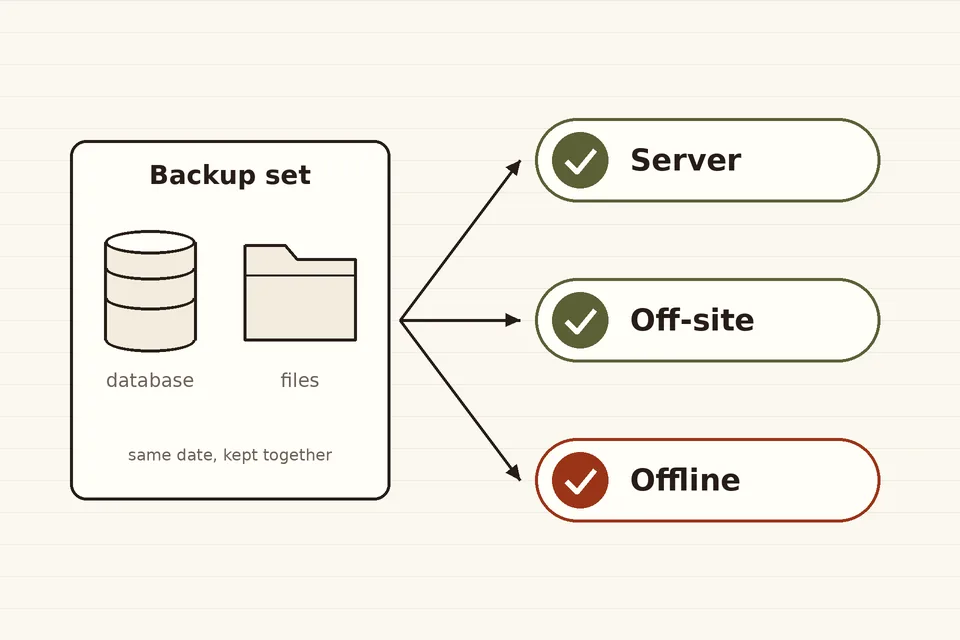
Files and database as one set, copies in separate places, and a test restore before the day you need it.